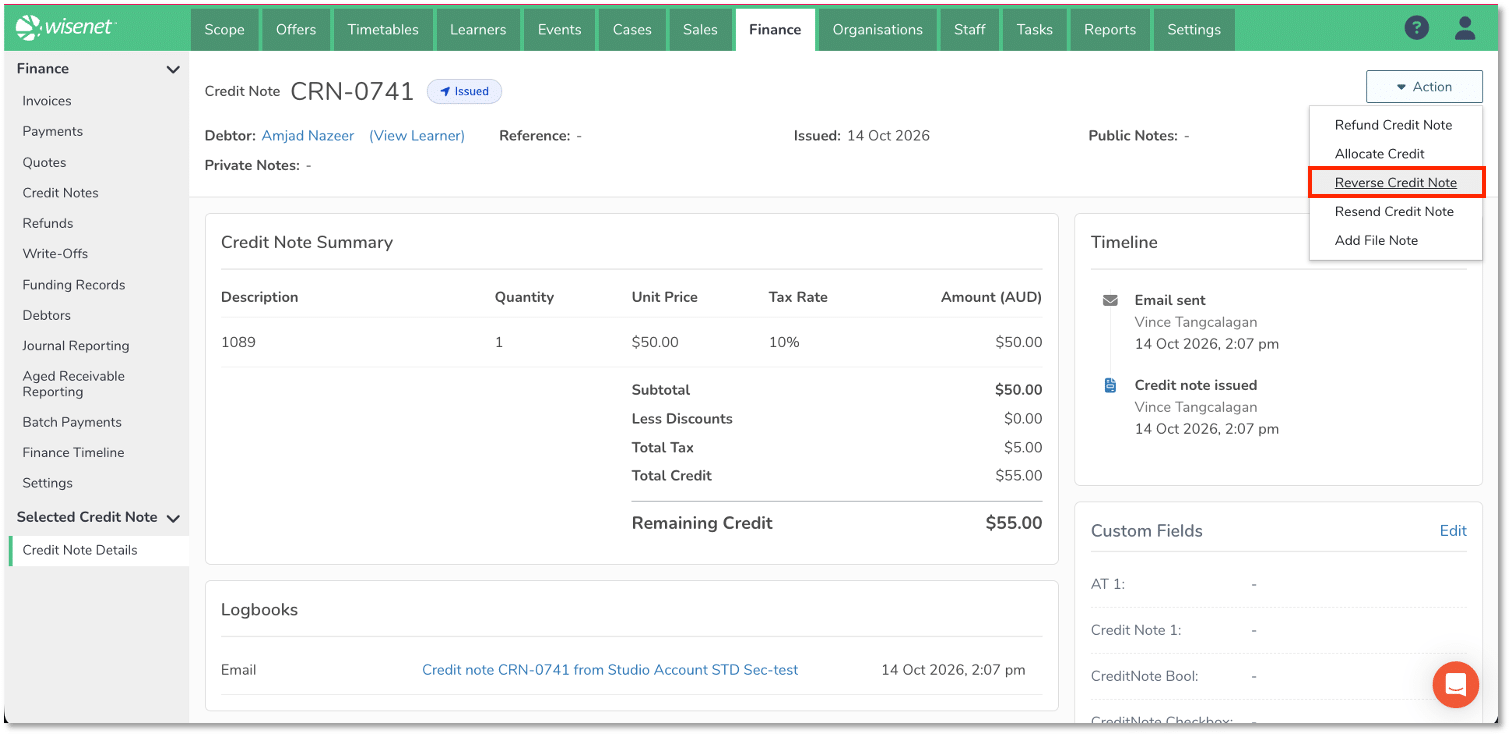
Reverse a credit note that was created in error when it meets the conditions below. The reversal applies to the whole credit note.
Before you begin
Check that the credit note:
- Has a status of Issued.
- Has no allocations. Unallocate it before you start if needed.
- Has no refunds that are still active. Reverse any related refund first.
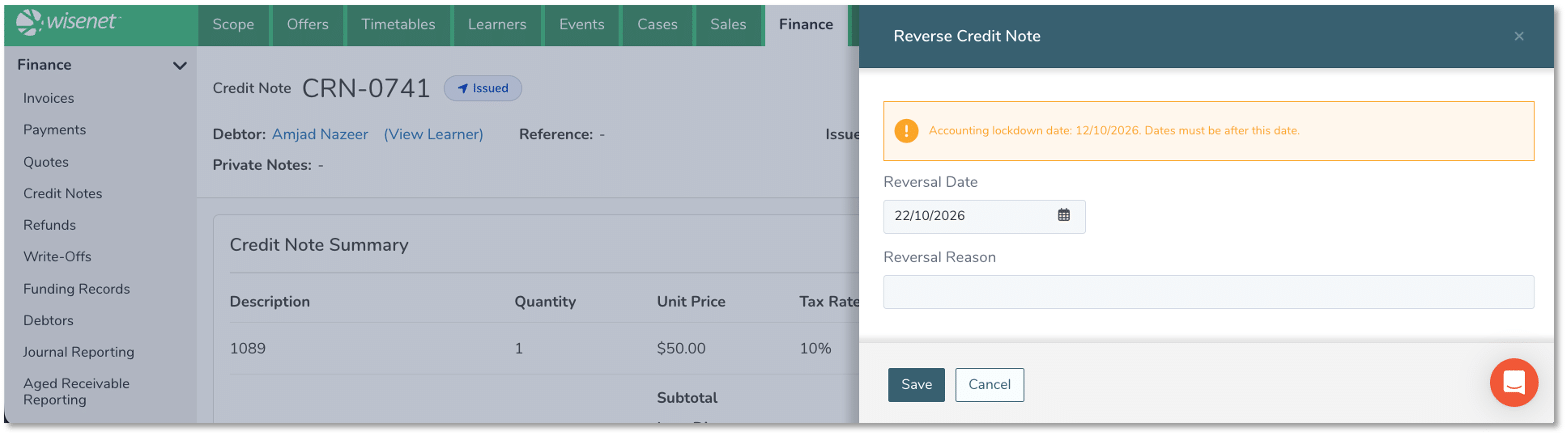
You cannot reverse part of a credit note. The reversal date must be on or after the credit note’s issue date and later than the Accounting Period Lockdown date. The issue date itself can be before the lockdown date.
1
Reverse a Credit Note
- Navigate to LRM > Finance > Credit Notes
- Find and open the credit note you need to reverse
- From the Action menu, click Reverse Credit Note
- Enter a Reversal Date that meets the date requirements above. Enter a reason if needed.
- Click Save