
Introducing Tasks
Tasks allows tracking of activities required to complete work-related goals. They can be assigned to individuals or groups, with details of who it is assigned by and have deadlines and priorities. They can be added individually as needed, or automatically using Learncycles based on trigger events. You can add Tasks at a Learner level, Course Enrolment level and Unit Enrolment level.
With the Tasks feature in Wisenet, you will get a clear overview of all activities to easily organise and prioritise your work. Automate this feature to help you save time and never miss an important task.
How to View Tasks
Depending on user access, Tasks can be viewed in a number of sections in Wisenet, and the following are some of the main sections:
The NEW Task Tab
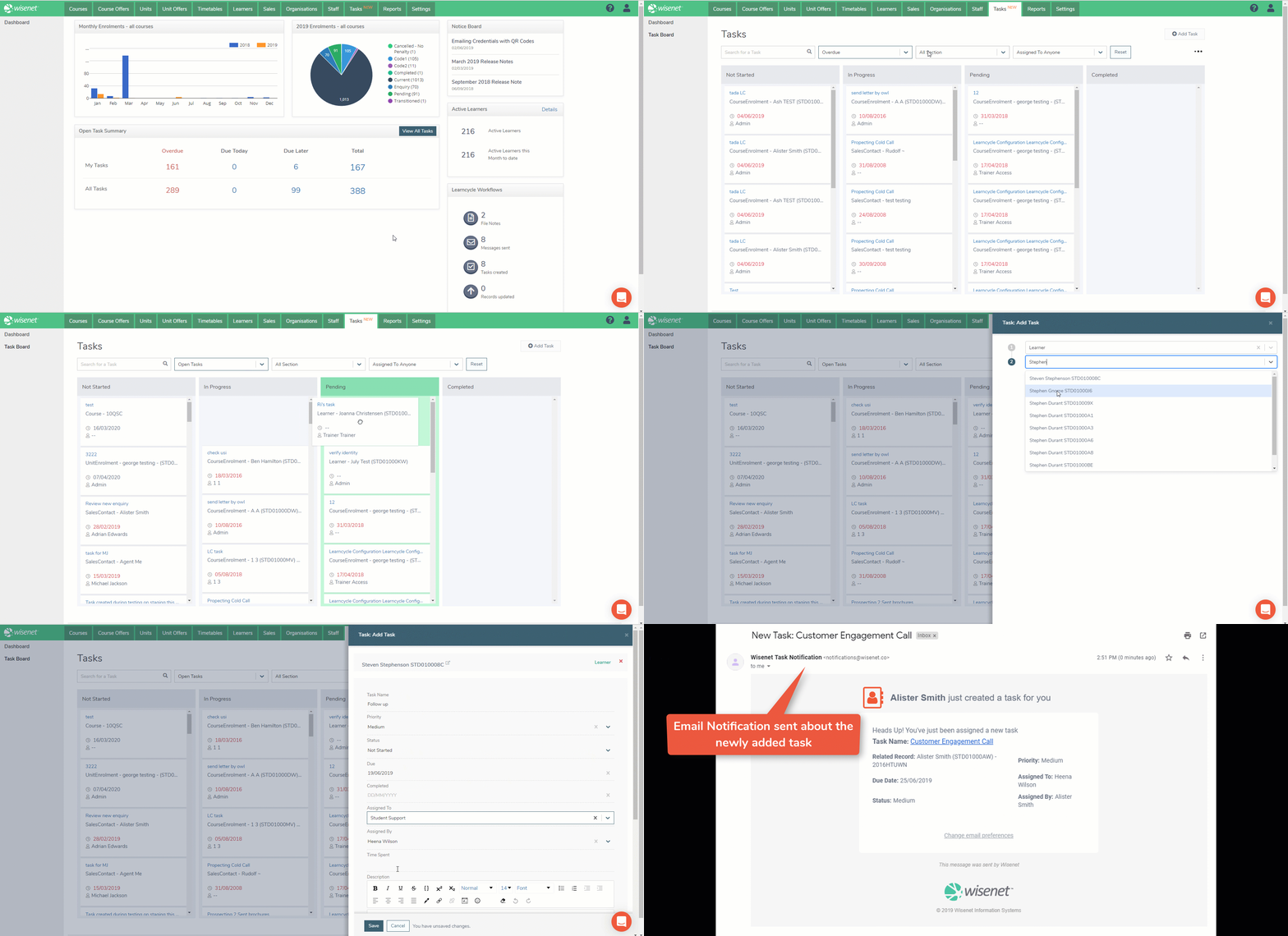
The Task Board allows all users with access to the LRM to easily:
- Search and Filter Tasks;
- Get a complete overview of Tasks’ Statuses, i.e. Not Started, In Progress, Pending, Completed;
- Drag and Drop Tasks to update status;
- Edit Tasks;
- Add new Task; and
- Email notifications sent to the Assigned Staff member when a Task is added or updated depending on User Preferences
On Home Dashboard
On the LRM Home Dashboard, you can review a summary of Open Tasks. Click on each of the numbers to open the Task Board for that count.
If you need to view and manage all Tasks, you can click on View All Tasks from the summary section which will then open the new Tasks tab with your Task Board.
- All Wisenet LRM Users – your My Tasks shows tasks assigned to you personally and tasks assigned to your role
- Trainers (if enabled in your portal settings) – your My Tasks will show tasks assigned to you personally and tasks assigned to your role
- Admin Users – All of the above, including all tasks regardless of who it’s assigned to, under All Tasks

In Logbook
All Users with access to the LRM can view Tasks in Wisenet. From all main sections of the LRM, e.g. Learners, Course Offer, etc, simply click on Logbook from the Left Navigation Bar and this will generate records of all Tasks.
Manually Adding Tasks
Tasks can be created from various locations within Wisenet. A list of all the Tasks in all Logbooks can then be viewed by anyone with an LRM Admin access.
Learn More? How to Manually Add Tasks
Automatically Adding Tasks
To automatically add Tasks follow the instructions on How to Add a Task via Learncycle.
Get an insight on how Tasks can be used
| Wisenet Section | Examples |
|---|---|
| Course | Course Validation and Moderation reports Meeting minutes Academic review notes Long-form Entry Requirement specifications |
| Unit | Unit Validation and Moderation reports Meeting minutes Academic review notes |
| Course Offer | Master copies of courseware and assessments for this version Course offer booklist / reading list Course Overview Introducing your trainers Course Offer Welcome Survey response collation or summary |
| Unit Offer | Master copies of courseware and assessments for this version Survey response collation or summary |
| Learner | Key Documents - can instead be added as Tasks if they require action. Scan of: - Driver's Licence - Visa - Passport Diary note about the Learner |
| Course Enrolment | Web link to digital portfolio Key Documents - can instead be added as Tasks if they require action. Copy of supplied Statement of Attainment for Credit Transfer purposes Diary note about the Learner |
| Unit Enrolment Note: Can be accessed via the Action Dropdown in the Unit Enrolment grid/table | Key Documents - can instead be added as Tasks if they require action. Copy of assessment cover sheet Diary note about the Learner |
| Staff | Key Documents - can instead be added as Tasks if they require action. - Copy of CV - Copy of qualifications Diary note about the Staff Member |
| Workplace | Key Documents - can instead be added as Tasks if they require action. - Workplace Agreement - Workplace Contract - Other correspondence Diary notes and phone conversations with the Workplace |
| Agents | Key Documents - Agent Contract - Company MOU - Copy of Registration paperwork |
Task visibility by Wisenet user access roles
| Admin | User | Guest | Student Support | Sales Admin | Sales | Trainer | |
|---|---|---|---|---|---|---|---|
| Agent | Y | Y | Y | N | N | N | N |
| Course | Y | Y | Y | N | N | N | N |
| Unit | Y | Y | Y | N | N | N | N |
| Course Offer | Y | Y | Y | N | N | N | N |
| Unit Offer | Y | Y | Y | N | N | N | N |
| Learner | Y | Y | Y | Y | N | N | * Their linked learners * Task assigned to the Trainer OR 'Trainer can see' is ticked |
| Course Enrolment | Y | Y | Y | Y | N | N | * Their linked Course Enrolment * Task assigned to the Trainer OR 'Trainer can see' is ticked |
| Unit Enrolment | Y | Y | Y | Y | N | N | * Their linked Unit Enrolment * Task assigned to the Trainer OR 'Trainer can see' is ticked |
| Staff | Y | Y | Y | N | N | N | N |
| Workplace | Y | Y | Y | N | N | N | N |
| Settings | Y | Y | Y | N | N | N | N |
| Sales Contact | Y | Y | Y | N | Y | Y | N |